WordPress 7.1 is approaching as the second major WordPress release of 2026. Release Candidate 1 became available on August 5, 2026, and the final release is scheduled for August 19, 2026. That makes this the right time for website owners, developers, agencies, and online publishers to prepare—not to install unfinished software on a live site, but to test their actual website in a controlled environment.
A major WordPress update can improve editing, media handling, collaboration, and performance. It can also reveal conflicts in a theme, plugin, integration, or page builder. Problems often appear where WordPress core meets hosting, PHP, plugins, caching, security tools, and custom code.
This WordPress 7.1 readiness guide explains what matters to ordinary site owners and provides a practical process for testing safely. The objective is not to delay updates forever. It is to replace risky one-click updating with a repeatable release procedure.
Why WordPress 7.1 Deserves a Controlled Update Process
WordPress 7.1 reached the Release Candidate stage on August 5. A release candidate is close to the expected final version, but WordPress explicitly warns against using it on production or mission-critical websites. RC testing is intended to help identify remaining issues before the public release.
The release changes both the editor and WordPress core. A simple brochure site may update cleanly, while membership, ecommerce, multilingual, directory, or heavily customized Elementor sites have more compatibility points to verify.
Important WordPress 7.1 Changes to Understand
Website owners do not need to study every developer note, but they should understand changes that can affect publishing, media uploads, administrative screens, and extensions. WordPress 7.1 includes improvements to client-side media processing, responsive design controls, Notes, revision sharing, editor behavior, and underlying APIs.
React 19 was tested during development but was postponed beyond WordPress 7.1 because of compatibility concerns. WordPress 7.1 continues to use React 18.3. This reduces one anticipated compatibility change, but it does not eliminate the need to test plugins that modify the editor or depend on WordPress JavaScript packages.
Client-Side Media Processing and Publishing Workflows
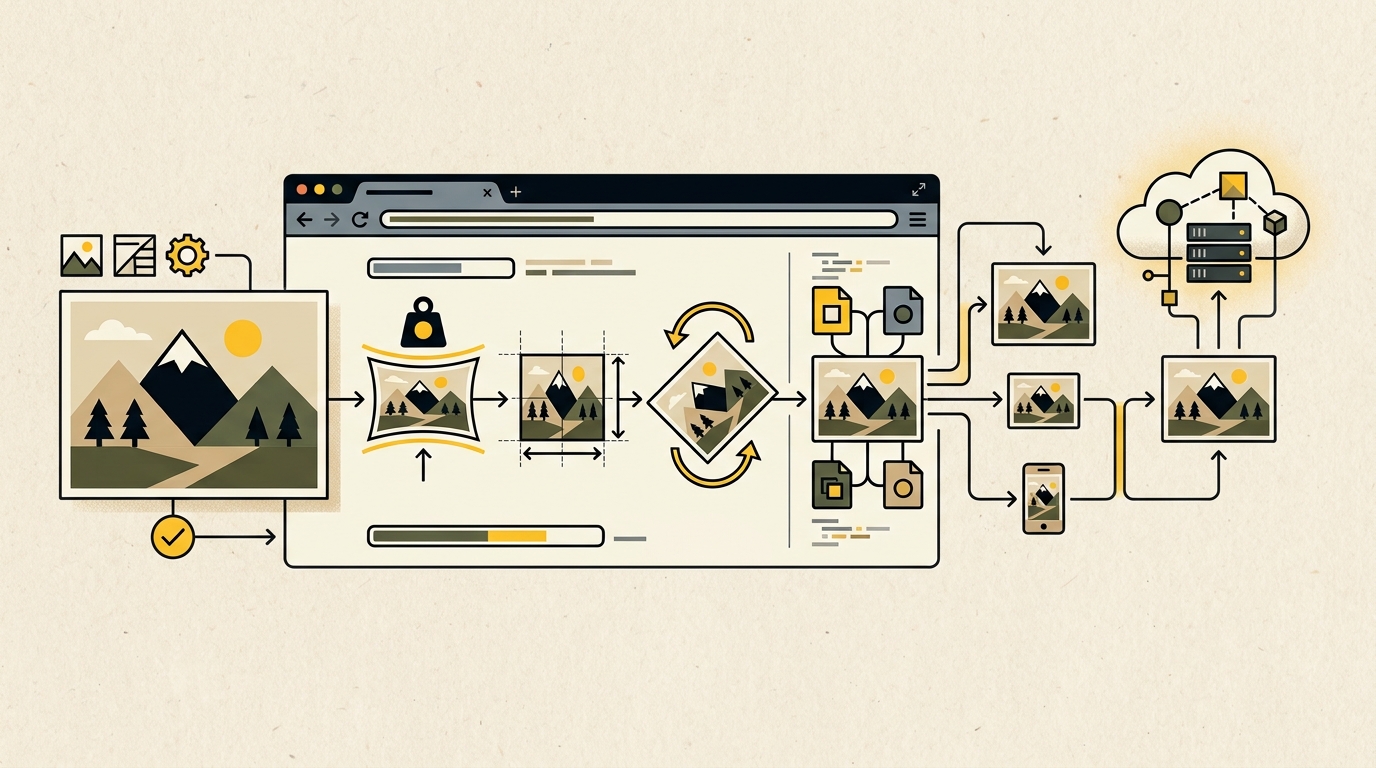
One of the most practical changes is client-side media processing. In supported browsers, WordPress can perform tasks such as image compression, resizing, format conversion, rotation, and thumbnail generation in the user’s browser instead of relying entirely on the server.
This can reduce pressure on hosting resources and improve some uploads, but it also creates new test cases. Upload common file types, large phone images, transparent images, and media used by your editorial team. Confirm that thumbnails are created, orientation is correct, quality is acceptable, and optimization or CDN plugins still behave as expected.
Do not judge the feature using only one small JPEG. Test the media that your business actually publishes. A travel website may rely on large landscape photographs, while an online store may need consistent product crops and transparent PNG or WebP assets.
Editor, Collaboration, and Extension Changes
WordPress 7.1 expands collaboration features around Notes, including mention notifications, and introduces shareable links to specific revisions. It also continues responsive styling work, makes the administrative toolbar more persistent across supported editing screens, and advances editor and data-view APIs used by plugin developers.
The release adds a public SVG Icon API, new block supports for minimum width and background gradients, updated editor components, and changes related to the iframed editor. These are valuable improvements, but plugins that inject controls, styles, scripts, custom blocks, meta boxes, or editor panels should be tested carefully.
For a visual-builder site, open representative pages in both WordPress and the builder. Confirm that widgets load, panels remain responsive, global styles stay intact, dynamic data appears, and saving does not alter unrelated settings. Test reusable templates, headers, footers, archives, and single-post layouts.
Choose the Right Time to Install the Final Release
There is no prize for being the first business website to install a major update. There is also no good reason to ignore an update indefinitely. The right timing depends on the site’s complexity, available support, business calendar, and quality of the backup and staging process.
A low-risk site with maintained plugins may update soon after release once staging passes. A revenue-critical site may wait briefly for vendor compatibility confirmations while testing immediately. Avoid major updates before a promotion, launch, event, or period without technical support.
Never Use the Production Website as the Test Environment
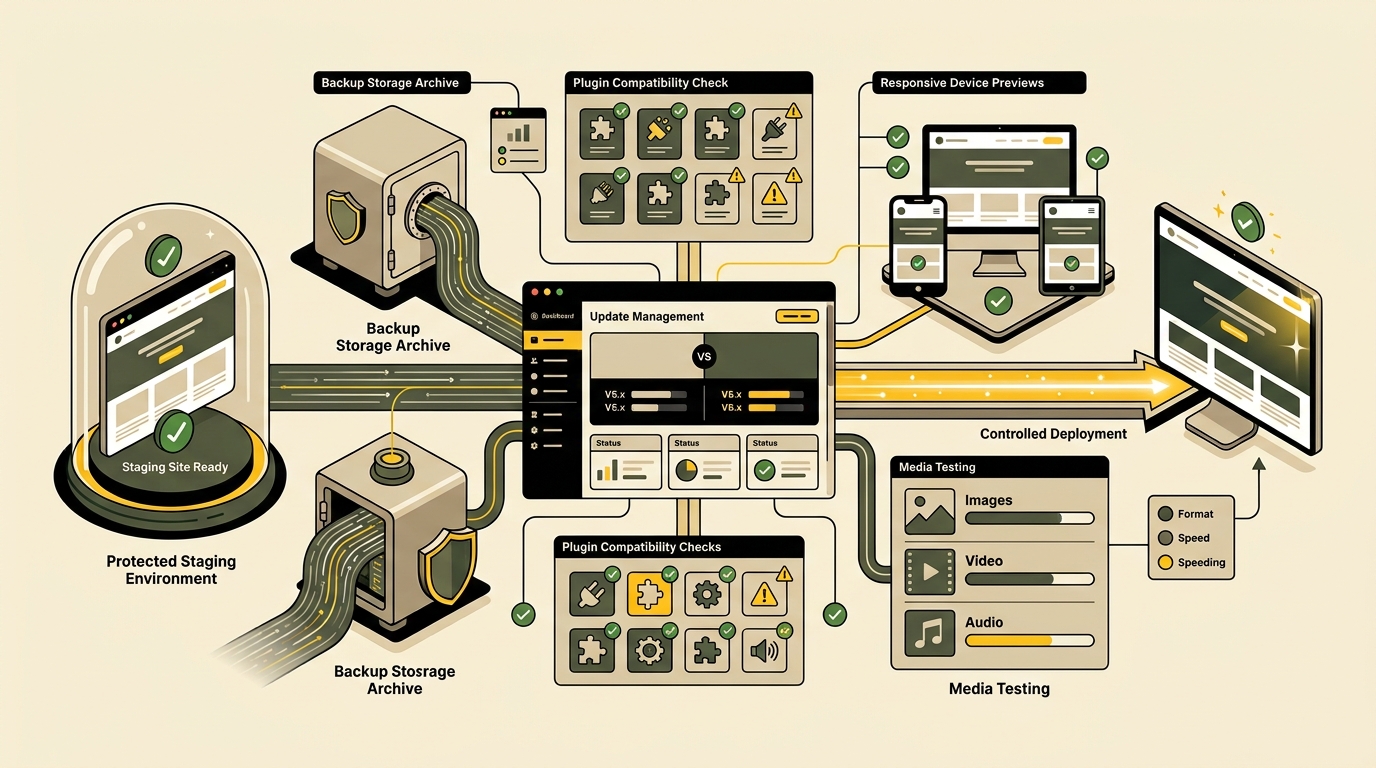
Create a staging copy or local clone that closely matches production. The copy should use the same WordPress configuration, PHP version, active theme, plugins, relevant content, and important integrations. Remove or protect private customer information when the staging system is not approved to store it.
Before changing anything, create a complete backup of the database and files and verify how restoration works. A backup that has never been restored is only an assumption. Record the current WordPress version, PHP version, active theme version, plugin versions, caching setup, and any known custom code.
Disable transactional emails, payment capture, indexing, and automated customer actions in staging. Then update WordPress and run the live site’s normal workflows. This approach also supports the supervised monitoring discussed in our guide to AI agents for small business.
WordPress 7.1 Pre-Update and Post-Update Checklist
A reliable test is based on business functions, not merely whether the homepage opens. Build a checklist around how visitors, editors, customers, and administrators use the website. Assign an owner to each critical test and record the result before approving production deployment.
- Hosting: Confirm supported PHP and database versions, available disk space, memory limits, SSL, and staging access.
- Backups: Create full file and database backups and confirm the restoration procedure.
- Theme and builder: Update maintained components, review vendor compatibility notes, and test global templates.
- Plugins: Remove abandoned extensions, update active plugins, and identify anything that changes login, checkout, search, media, caching, or the editor.
- Custom code: Review snippets, child-theme functions, custom widgets, shortcodes, REST integrations, and scheduled tasks.
- Performance: Capture baseline page-speed and server-response measurements before updating.
- Security: Verify administrator accounts, permissions, malware monitoring, firewall behavior, and login protections.
A Seven-Stage Testing Workflow
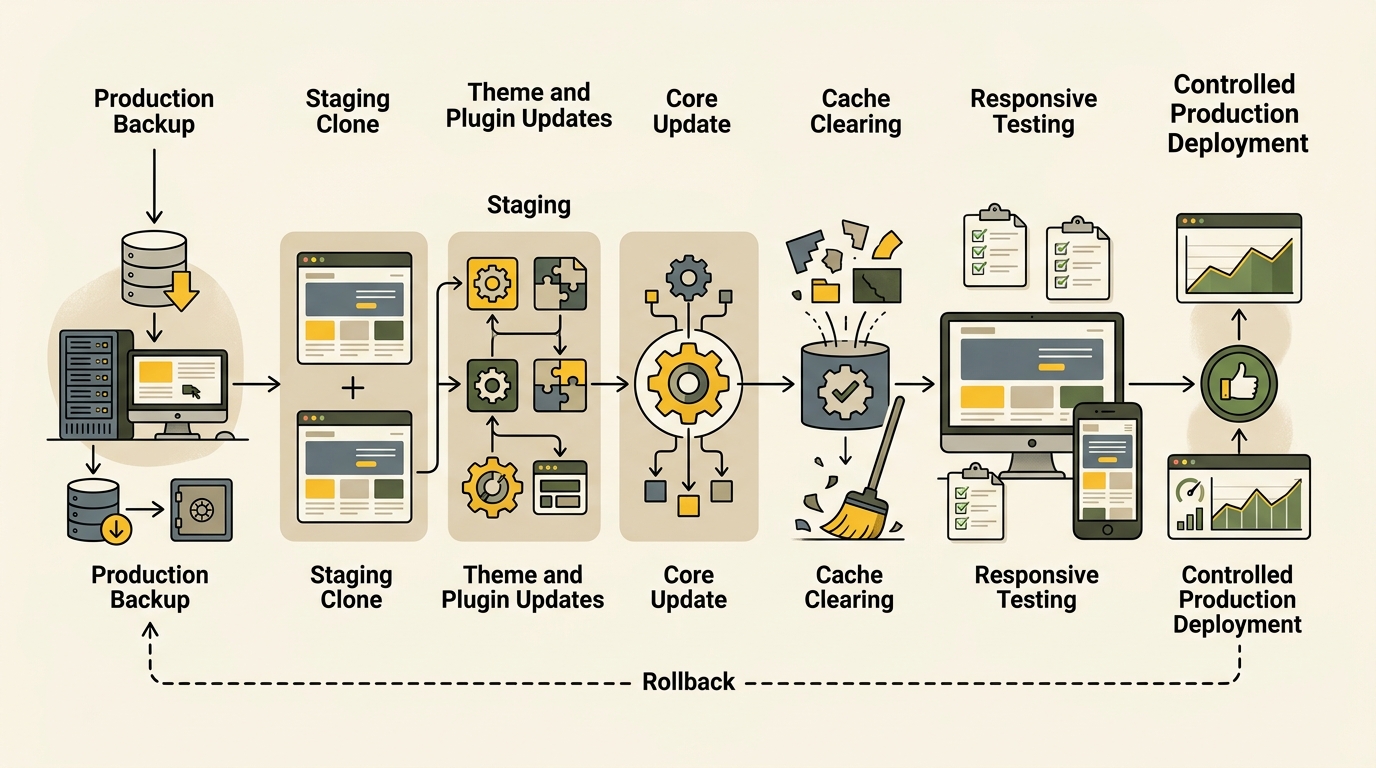
First, clone production to staging and protect the staging URL. Second, take screenshots of key pages and record baseline performance. Third, update the theme and plugins that are already approved for the current production version. Fourth, install WordPress 7.1 in staging after the final release or test RC1 only when you intentionally participate in pre-release testing.
Fifth, clear every relevant cache: browser, plugin, server, object, and CDN. Sixth, run functional and visual testing on desktop, tablet, and mobile. Seventh, review logs and compare the updated site with your baseline before scheduling the production update.
Test public pages, menus, search, categories, forms, buttons, downloads, videos, image galleries, redirects, and error pages. For ecommerce, test product variations, cart calculations, coupons, taxes, shipping, checkout, payment sandbox transactions, confirmation emails, and account pages. For membership sites, verify registration, login, restricted content, password resets, and subscription actions.
Editors should create and update a draft, upload media, schedule a post, preview changes, add internal links, and confirm SEO metadata. Publishers working on search visibility should also verify crawl settings, canonical tags, structured data, XML sitemaps, and page output. These checks support the practices covered in our AI search optimization guide.
Verify Critical Site Paths After the Production Update
Once staging is approved, choose a low-traffic maintenance window. Create a fresh production backup, pause unnecessary publishing, apply the update, clear caches, and immediately run a shortened critical-path checklist. Confirm the homepage, primary landing pages, login, contact or reservation paths, checkout where applicable, search, and at least one mobile page.
Monitor PHP logs, JavaScript console errors, uptime alerts, security events, form deliveries, payment failures, and unusual performance changes. Keep the rollback procedure ready, but do not restore automatically for a minor cosmetic issue that can be corrected safely. Roll back when a critical workflow fails, data integrity is at risk, or diagnosis cannot be completed without extended downtime.
After the first day, review analytics and operational systems for hidden problems. A page can look normal while conversions, scheduled jobs, webhooks, indexing, or email delivery fail. Check again after several days.
Use the official WordPress 7.1 Field Guide as the technical reference for the final release. Plugin and theme developers should review the relevant developer notes rather than relying only on a general feature summary.
WordPress 7.1 should be treated as a planned software release, not a surprise dashboard notification. Prepare a representative staging environment, test the workflows that generate value, document failures, and deploy during a controlled window. That process makes updates faster over time because the team no longer has to improvise each time WordPress, a plugin, or a theme changes.
The same principle applies to broader security improvements. Updates protect only one part of the system; account access, permissions, and authentication also matter. Our next guide will explain how passkeys for business websites can reduce dependence on vulnerable passwords.